

Before you begin
- The invoice’s Status is ERP Posting. Matching is done.
- Know your entity’s GST/VAT code, and the WHT code if this vendor is subject to WHT.
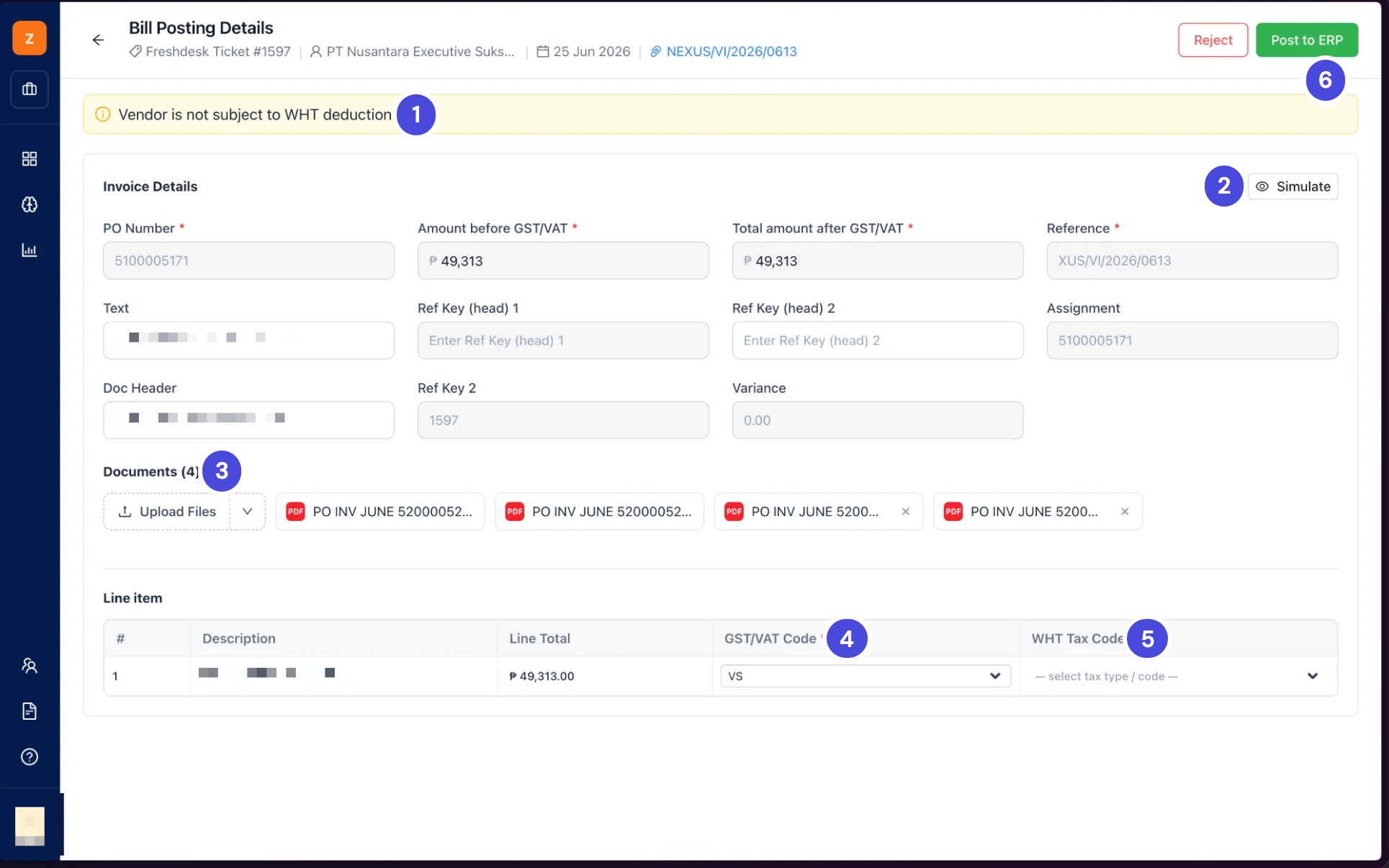
Bill Posting Details, before posting.
1Banner
2Simulate
3Documents and Upload Files
4GST/VAT Code
5WHT Tax Code
6Post to ERP
Post the invoice
1
Read any banner at the top.
For example,
Vendor is not subject to WHT deduction means this vendor needs no WHT code.2
Check the fields under Invoice Details.
Gray fields are locked. You can change the white ones, such as Text and Doc Header.
3
Under Documents, check that the invoice file is there.
To add a supporting document, select Upload Files.
4
For each line under Line item, choose the GST/VAT Code. It's required.
For some entities the code is filled in for you. Check it anyway.
5
If the vendor is subject to WHT, choose the WHT Tax Code for each line.
6
Select Simulate, and check the accounting entries.
Debits and credits must balance. If they don’t, the window shows
Balance not zero. Fix the tax code and simulate again.7
Select Post to ERP.
What happens nextPosting usually takes a couple of seconds. The banner then reads
Posted to ERP successfully, with the SAP Accounting Doc and Invoice Doc numbers, and Post to ERP becomes Bill Posted. The invoice moves to the Closed tab, and Neoflo updates the Freshdesk ticket. See Track a ticket with Neoflo Status.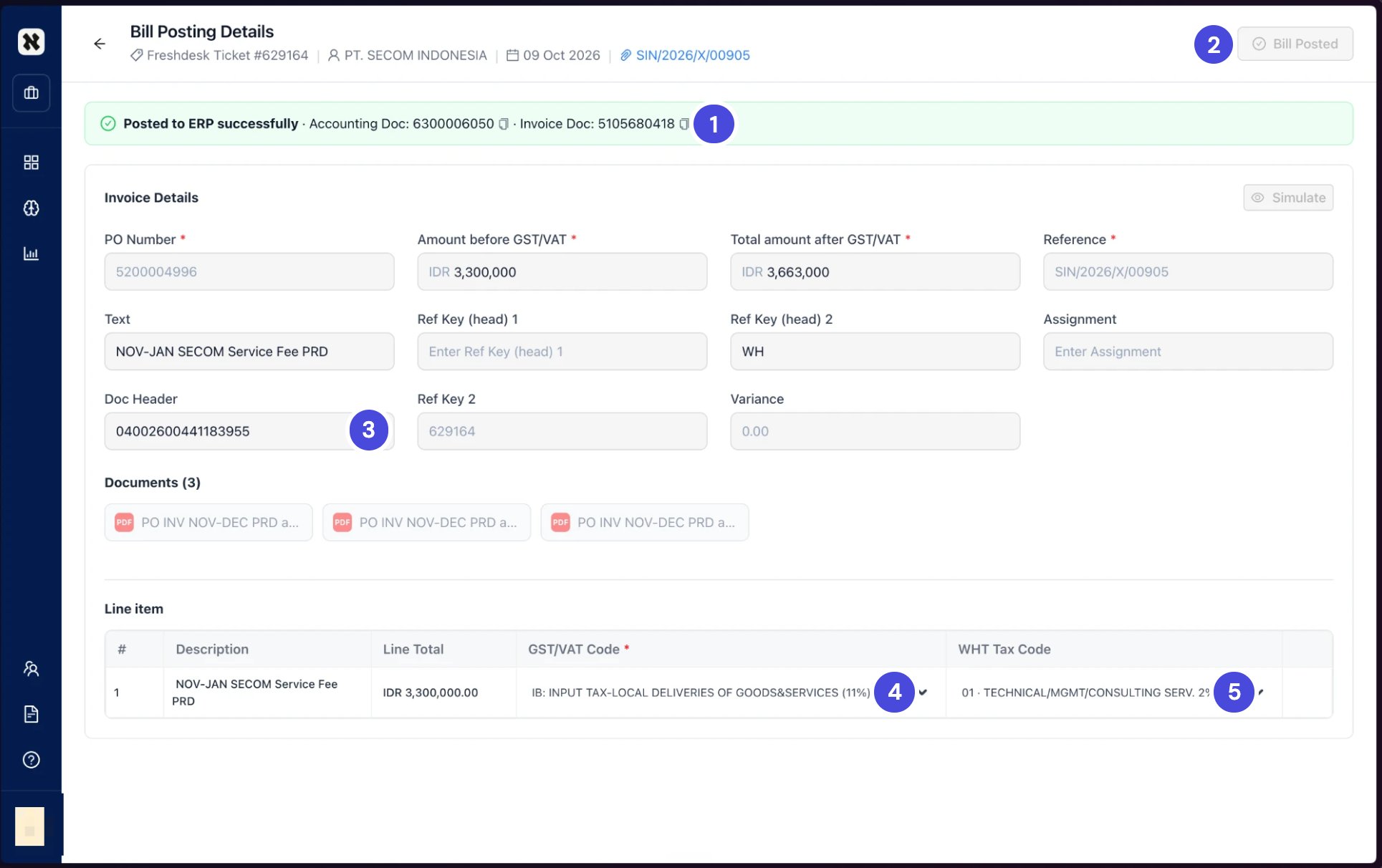
A posted invoice. The fields are now read-only.
1Posted to ERP successfully, with both SAP document numbers
2Bill Posted
3Doc Header: for an Indonesian invoice, the Faktur Pajak number
4GST/VAT Code
5WHT Tax Code