

Before you begin
- The invoice’s Status is Extraction, and its Action is Review.
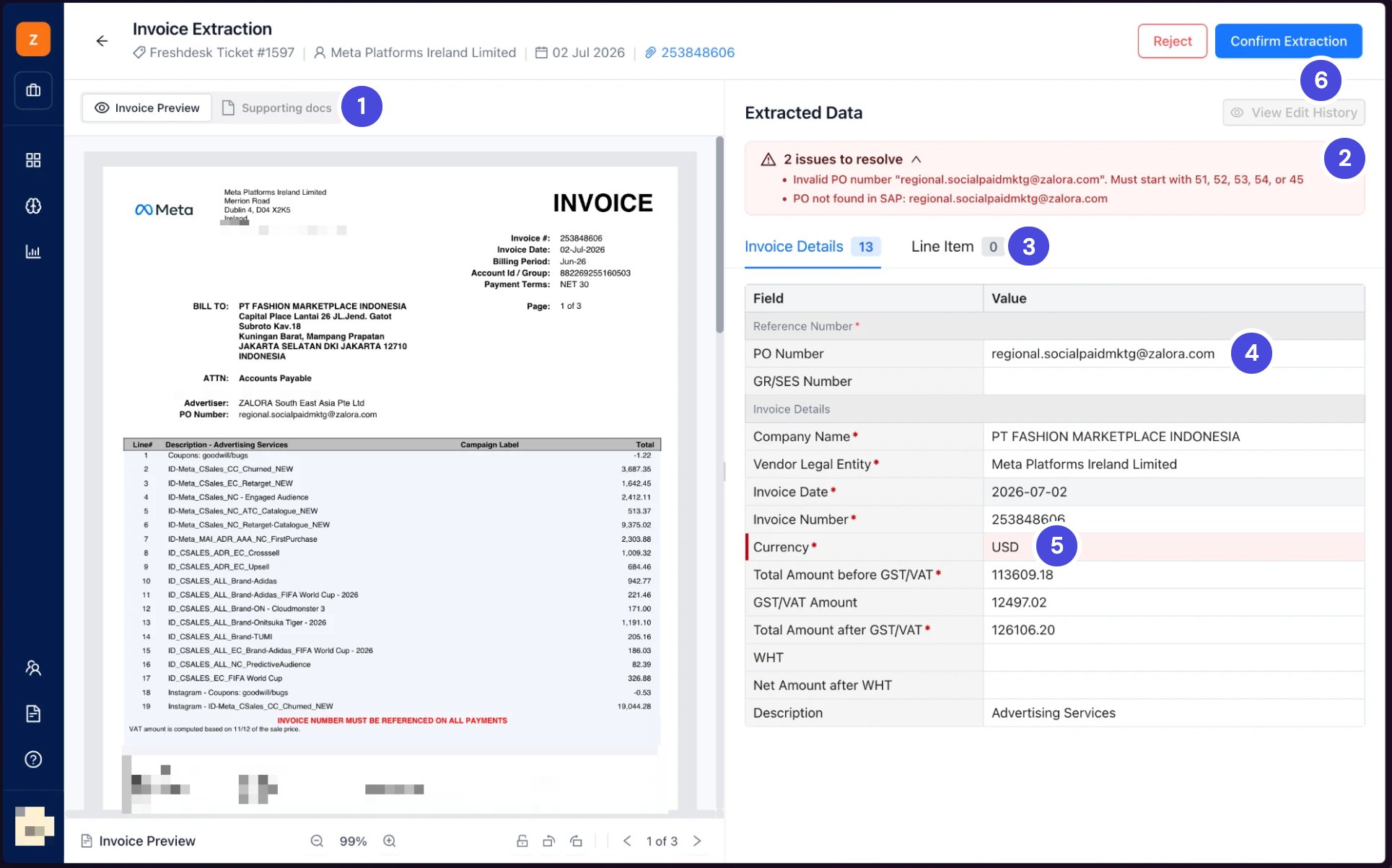
Invoice Extraction. The banner lists two issues to resolve, and Currency is highlighted for a check.
1Invoice Preview and Supporting docs
2Issues to resolve
3Invoice Details and Line Item
4PO Number
5A highlighted field
6Confirm Extraction
Check and confirm the extraction
1
Read the issues banner at the top of Extracted Data.
It lists what has to be fixed before you can continue, such as a missing or invalid PO number.
2
Check PO Number.
Neoflo looks for it on the invoice, then on the ticket. If it’s empty or wrong, enter the right one. It starts with 51, 52, 53 or 54.
3
Check GR/SES Number.
For a 52 series invoice, enter the service entry sheet (SES) number if the invoice or the ticket gives one. For 51 and 53, leave it empty unless you need one specific goods receipt. Neoflo fetches the rest from SAP. For 54, leave it empty.
4
Check each highlighted field against the invoice on the left, and correct any wrong value.
Fields marked * are required.
5
Select the Line Item tab, and check the lines the same way.
6
Select Confirm Extraction.
What happens nextAn Indonesian invoice goes to the Faktur Pajak check. See Check the Faktur Pajak. Every other invoice goes to Matching. See Match a 51 or 53 series invoice for 51 and 53, or Match a 52 or 54 series invoice for 52 and 54.