
How matching works for 52 and 54

PO numbers that start with 52 and 54 are blanket POs. A blanket PO covers a run of purchases over time, and each invoice draws on it. The two series are matched differently, because only one of them has a document confirming what was received.
The Invoice Details tab and the duplicate check work as they do for 51 and 53. See Match a 51 or 53 series invoice.

52 series

Matched against its service entry sheet.

54 series

Allocated across the PO’s lines.

52 series: match against the SES

Neoflo matches the invoice total against the SES. On Line Items, the invoice shows as a single line, Total of invoice, and the SES sits on the right with its PO and SES numbers. The two amounts must agree within the tolerance.

Tell Neoflo which SES

Enter the SES number in GR/SES Number on Invoice Extraction. You can leave PO Number empty: Neoflo finds the PO from the SES, and fills it in for posting. An invoice that bills more than one SES can carry more than one SES number.
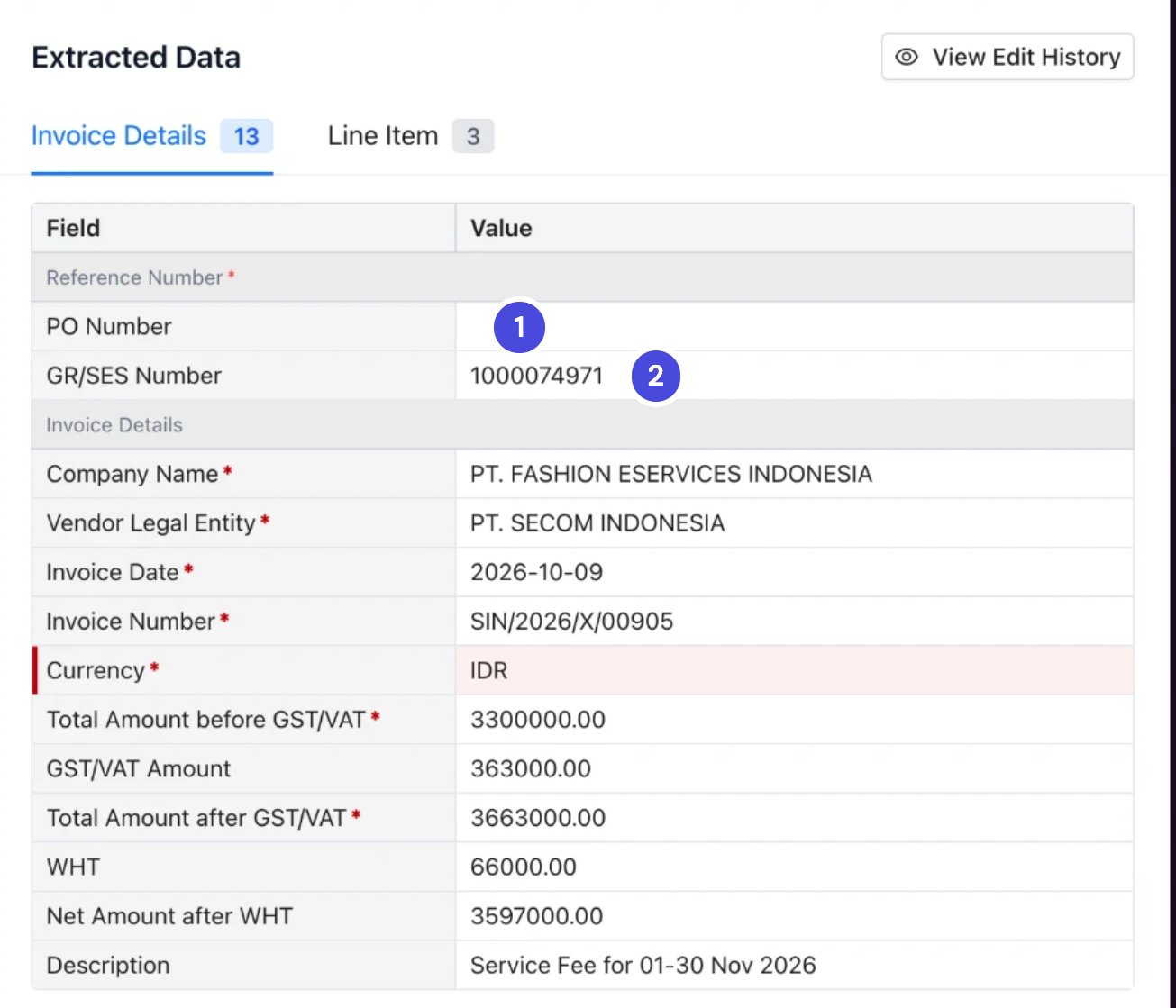
The Extracted Data panel for a 52 series invoice. PO Number is empty and GR/SES Number holds the SES number

A 52 series invoice at extraction, with only its SES number entered.

1PO Number, left empty
2GR/SES Number, holding the SES number

Example: a 52 series invoice

SGD 60 is beyond the tolerance, so Neoflo blocks this invoice. First check that you have the right SES. If you do, ask the requester whether the SES or the invoice is wrong, then have the SES corrected or reject the invoice. Had the invoice been SGD 1,200, it would have matched.

Match a 52 series invoice

Before you begin
  • The SES is posted in SAP.
  • Invoice Extraction has the SES number in GR/SES Number, the PO number starting with 52, or both.
1

On the Matching screen, select the Invoice Details tab, and clear every flagged row.

It works the same way as for 51 and 53. See Match a 51 or 53 series invoice, step 2.
2

Select the Line Items tab.

3

Check that the SES on the right, under GRN, is selected, and that its Amount matches the invoice total.

4

Read the bar at the bottom of the tab.
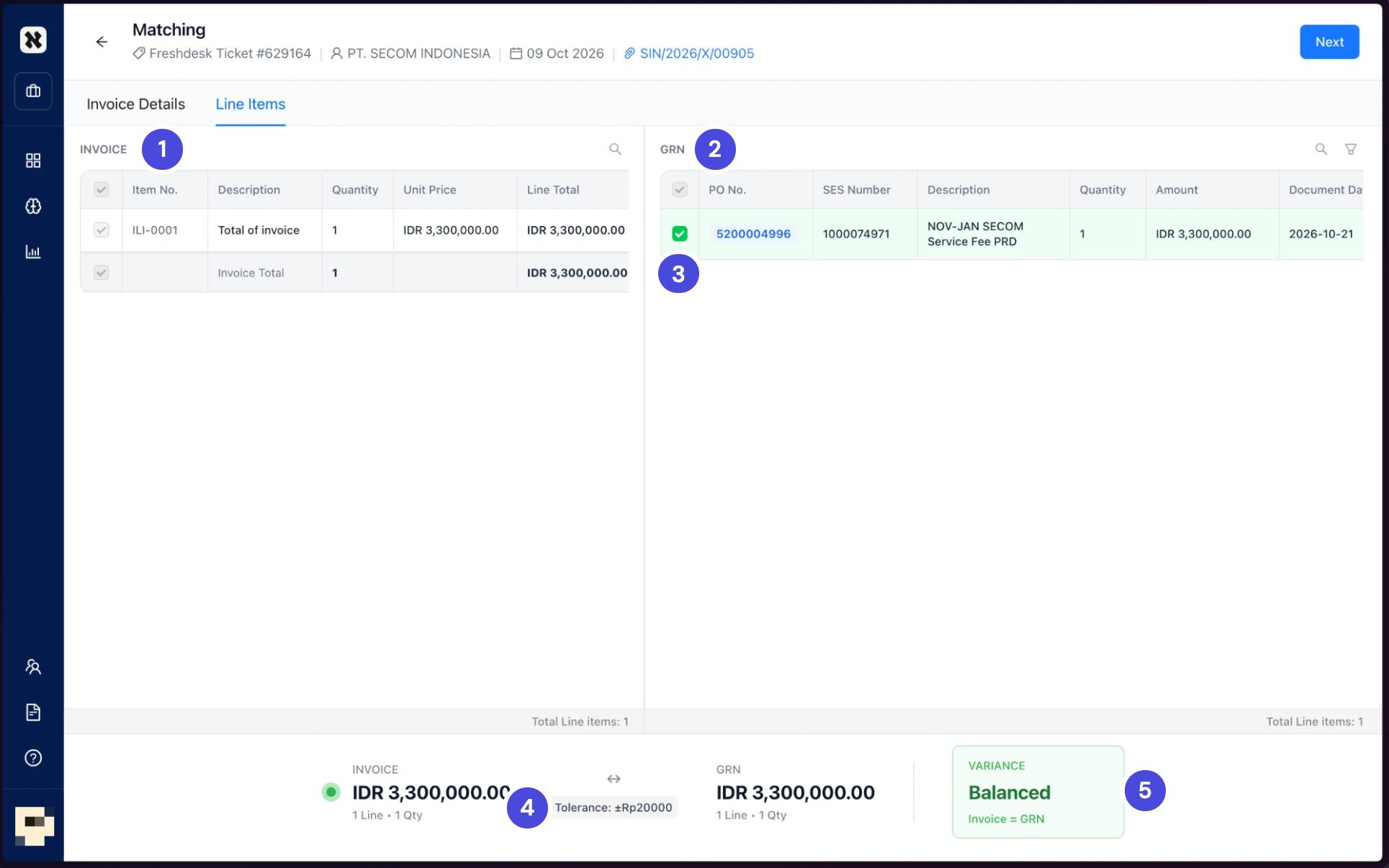
Balanced means the totals agree within the tolerance. The tolerance is in your entity’s currency: for Indonesia, for example, the bar shows Tolerance: ±Rp20000.
The Line Items tab for a 52 series invoice. The invoice shows as one line, Total of invoice, on the left. The SES is selected on the right with its PO and SES numbers. The bar at the bottom shows both totals, a tolerance of plus or minus Rp20000, and a Balanced variance

Line Items for a 52 series invoice, balanced against its SES.

1INVOICE: the invoice as one line, Total of invoice
2GRN: the SES, with its PO and SES numbers
3Selected: matched
4Tolerance
5VARIANCE
5

Select Next.

What happens nextThe invoice moves to ERP Posting. Continue with Post an invoice to SAP.

54 series: allocate the invoice to PO lines

There’s no receipt document to match against, so you tell Neoflo which PO lines this invoice consumes, and how much it takes from each. The amounts you allocate must add up to the invoice total.

Example: a PO running out

This invoice goes through and leaves SGD 500 on the PO. The vendor’s next invoice, for SGD 900, would be blocked: only SGD 500 is left. The requester then extends the PO or raises a new one. After that, go back to Invoice Extraction, enter the new PO number if there is one, and confirm again.

Match a 54 series invoice

Before you begin
  • The PO number starts with 54.
  • Know which of the PO’s lines this invoice is for, and how much goes to each. The invoice description usually says.
1

On the Matching screen, select the Invoice Details tab, and clear every flagged row.

It works the same way as for 51 and 53. See Match a 51 or 53 series invoice, step 2.
2

Select the Line Items tab.

The invoice amount is under INVOICE on the left. The PO’s lines are under PO ITEMS on the right.
3

Select the check box for each PO line this invoice consumes. A selected line turns green.

4

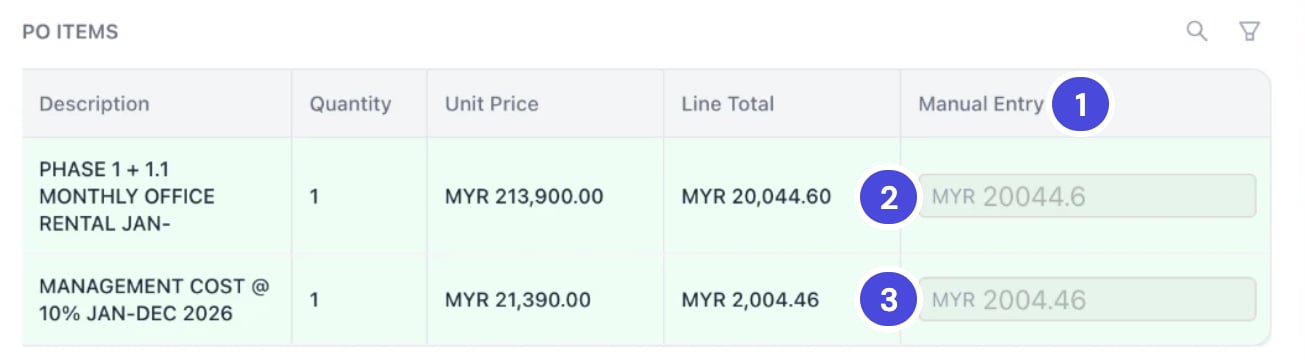
In Manual Entry on each selected line, enter how much of the invoice goes to that line.

Manual Entry is the last column. Scroll the panel to the right to reach it.
5

Read the bar at the bottom of the tab.
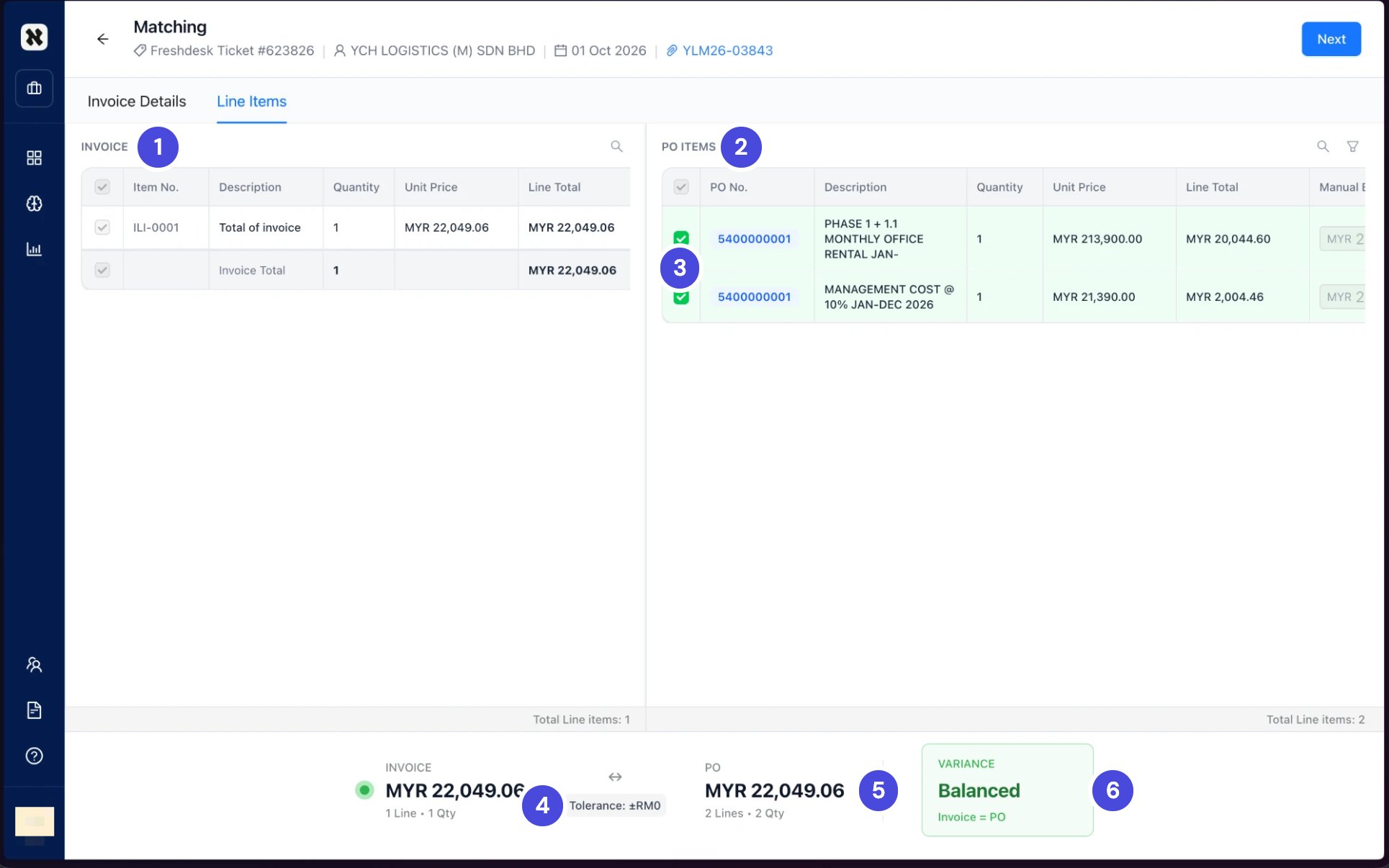
It compares the invoice total with the total you allocated to the PO. Balanced, with Invoice = PO, means they agree within the tolerance. In the next figure, the tolerance is ±RM0, so the amounts must add up exactly.
The Line Items tab for a 54 series invoice. The invoice shows as one line on the left. Two PO lines are selected on the right under PO ITEMS. The bar shows the invoice total, a tolerance of plus or minus RM0, the PO total and a Balanced variance

Line Items for a 54 series invoice. MYR 20,044.60 goes to the rental line and MYR 2,004.46 to the management-cost line, which add up to the invoice's MYR 22,049.06.
1INVOICE: the invoice as one line
2PO ITEMS: the PO’s lines
3Selected: the lines this invoice consumes
4Tolerance
5PO: the total allocated
6VARIANCE
The PO ITEMS panel scrolled to the right, showing the Manual Entry column with an amount entered on each of the two PO lines

The same panel, scrolled right to Manual Entry.

1Manual Entry
2The amount for the rental line
3The amount for the management-cost line
6

Select Next.

What happens nextThe invoice moves to ERP Posting. Continue with Post an invoice to SAP.

If the invoice is blocked

There’s no Reject button on Matching. To reject, select the back arrow at the top left until you reach Invoice Extraction. See Reject or resend an invoice.